Vilm Lyrics Aligner
The lyrics you provide are always the subtitle text. Audio recognition is used for timing only. It never rewrites your words.
Introduction
- Uses the lyrics you already have and lines up subtitle timing to your live vocal video or audio.
- It transcribes the audio internally as a reference, then places your own lyrics at the right spot in the song. Your text and line order stay exactly as you entered them.
- Vocals are separated from the mix before alignment, so timing stays accurate even with a full live backing track.
- Works with lyrics that mix Korean and English.
- Process a full file or just the section you need.
- Developed and tested on Windows and Apple Silicon Mac. Results may vary depending on your environment.
- Humming, ad-libs, and other loose sections may need a quick manual check. The goal isn't a flawless result with zero edits, it's cutting down the manual timing work you'd otherwise do.
- First install needs an internet connection and a few gigabytes of storage. It runs in its own isolated environment and won't affect other programs.
- Vilm is not responsible for any issues caused by improper use of the software.
Guide
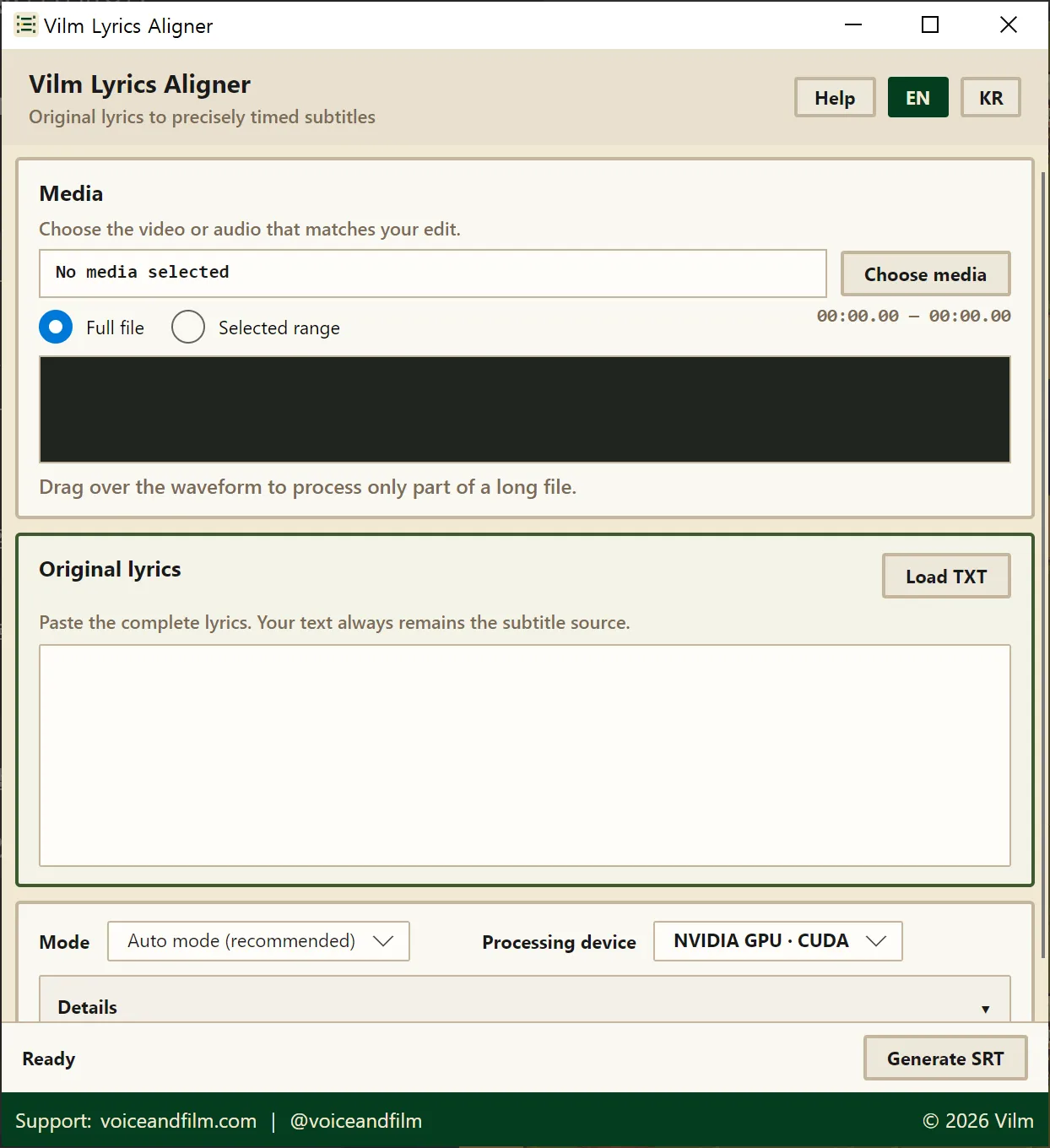
Choose your media, paste the lyrics, and pick a mode and processing device, all from one window.
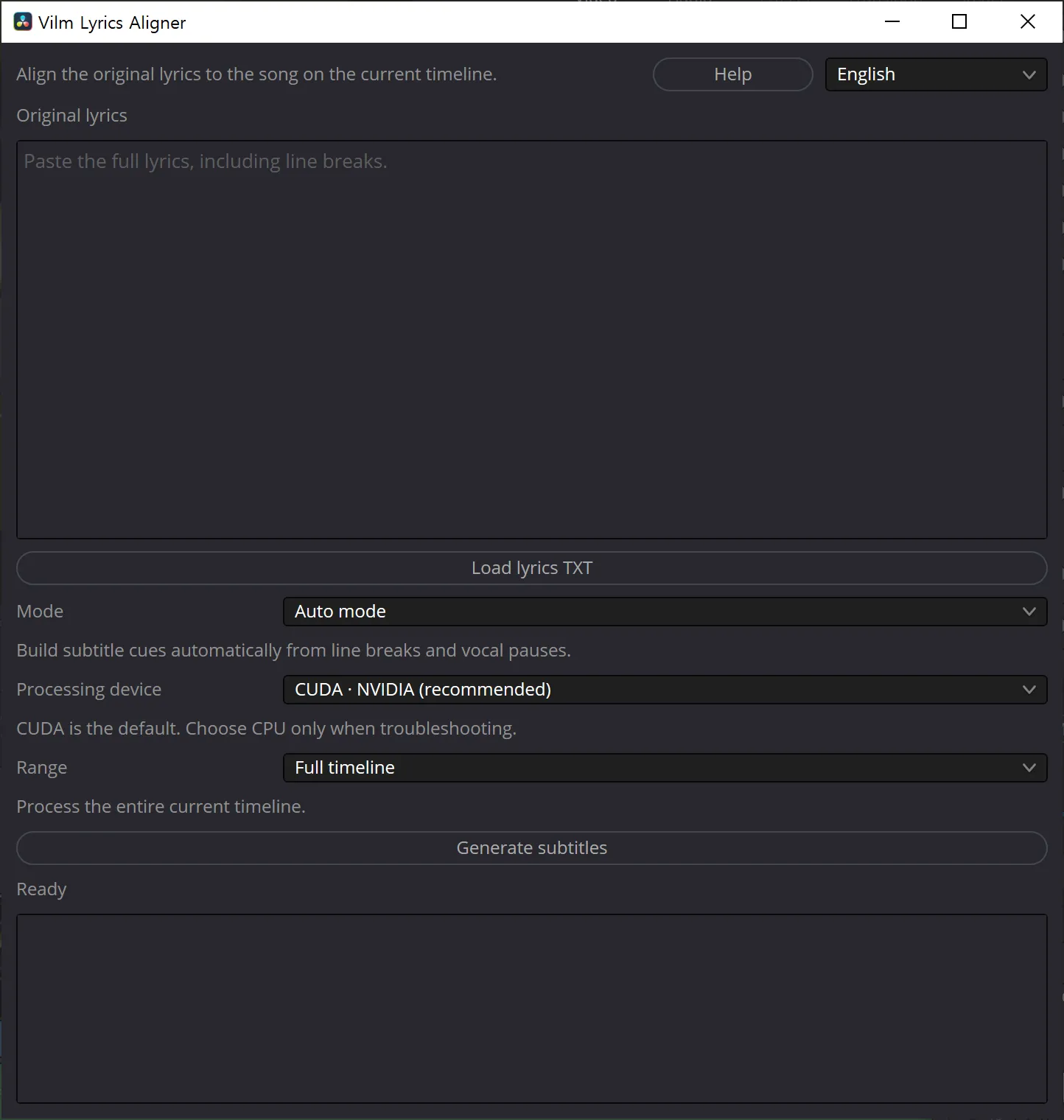
Once installed, use it directly inside DaVinci Resolve Studio, no separate app to launch. Process the current timeline or just its In/Out range, and the subtitles land right on your timeline.
- Open a matching video or audio file.
- Select the whole file, or drag over just the section you need.
- Paste your lyrics, or load a TXT file.
- Generate a first pass with Auto mode. It treats line breaks as strong hints and refines boundaries using pauses and text length.
- If a line needs adjusting, switch to Manual (advanced) mode to set character count, duration, and ending hold per line. A parenthesized line like
(hum)reserves a section with no visible subtitle. - Import the finished SRT into your editor.
Developer Note
Hi, I'm Hyunwoo Park from Vilm.
There are already some great auto-captioning tools out there. But they don't always hold up in music videos, where an artist's phrasing and delivery vary so much. I kept running into cases where the words and phrases a musician actually intended weren't being transcribed correctly, and that's what led me to build this.
We all already have the original lyrics. Just paste them in as they are. There may be small inaccuracies here and there, and any remaining touch-ups are easy to adjust to your own taste.
This tool is open source. You can find the code on GitHub.
For questions, reach out by email or the Contact page. Thank you.
With hope that my fellow musicians out there keep making music they love...
Changelog
- Improved compatibility with the latest NVIDIA GPUs
- Improved installer retry on firewall/network errors, and stability of install cancellation and uninstall
- Subtitle generation logic unchanged from v1.0.0
- Windows standalone app
- Apple Silicon macOS standalone app
- DaVinci Resolve Studio integration
- Auto / Manual modes
- Full-file and selected-range processing
- Korean/English mixed lyrics support
- CPU, CUDA, Apple Metal processing paths